

Editing video is equal parts art and grueling manual labor. Ask any creator, editor, or agency producer what eats up most of their project hours, and they won’t say "color grading" or "crafting the story." They will tell you it's the rough cut: trimming dead air, chopping out retakes, scanning for filler words, and assembling a readable timeline.
Adobe Premiere Pro is an industry-standard power tool, but its out-of-the-box rough-cut process can feel like digging a tunnel with a spoon. Enter FireCut, an AI-driven extension designed to handle the repetitive heavy lifting so you can focus on creative storytelling.
Here is how FireCut fundamentally transforms your Premiere Pro timeline—from the painstaking reality of manual editing to a streamlined, automated workflow.

The Reality of Manual Timeline Editing
Without automation tools, assembling a rough assembly in Premiere Pro is a test of patience. The process typically drags through several tedious stages:
- The Endless Rippling of Silences: When recording interviews, podcasts, or YouTube talking-head videos, speakers naturally pause to gather their thoughts. Manually deleting these gaps requires scrubbing through the audio waveform, setting In and Out points, pressing Ripple Delete (or using the Razor Tool), and sliding clips together—hundreds of times per project.
- Hunting Down Retakes and Filler Words: When a host stumbles over a line and repeats it three times, you have to carefully listen to all three takes to pick the best one. Finding every "um," "ah," or long hesitation takes double the real-time duration of the clip just to review.
- Pacing with Manual Zooms: To keep modern viewers engaged, editors often add punch-ins (110% to 115% zoom cuts) on key sentences. Manually keyframing or slicing clips to adjust scale parameters adds another layer of tedious micro-adjustments.
By the time you finish trimming a 45-minute raw recording into a tight 10-minute video, hours have slipped away—and you haven't even touched sound design, visual effects, or color grading.
FireCut Tutorial: Automating Your Cut in Minutes
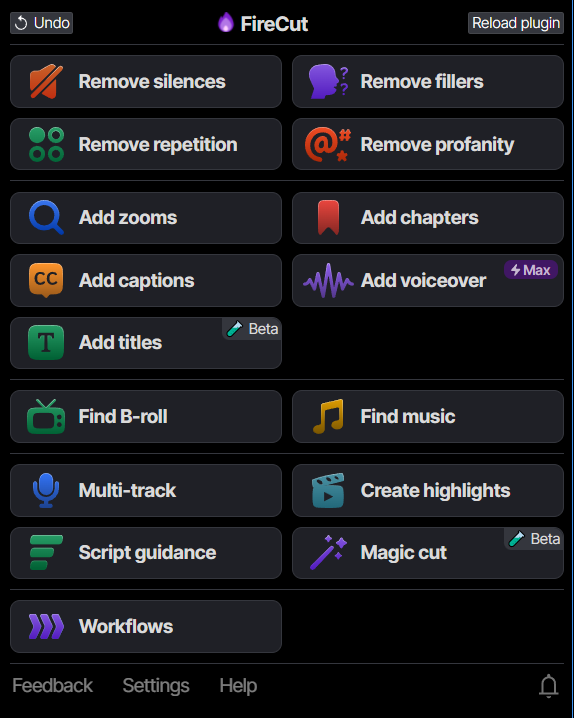
FireCut integrates directly into Premiere Pro as an extension panel, meaning you don't have to export clips or switch to an external app. Here is a step-by-step walkthrough to turn hours of tedious slicing into a few clicks:
Step 1: Launch the Panel
Open your project in Adobe Premiere Pro, navigate to Window > Extensions > FireCut, and select the sequence or raw clip you want to clean up on your timeline.
Step 2: Remove Silences Automatically
Click on Remove Silences inside the FireCut panel. Set your Silence Threshold (decibel level) and Min Silence Duration (for example, cutting gaps longer than 0.4 seconds). Choose your cut style—FireCut supports standard ripple cuts or slight padding to keep speech natural—and click Cut Silences. Within seconds, FireCut scans the audio track and removes all dead air across the timeline.
Step 3: Strip Out Fillers and Bad Takes
Select Remove Fillers & Repetitions. FireCut transcribes your audio and flags repeated phrases or unwanted filler sounds like "ums" and "ahs." Review the flagged sections in the panel and click Apply Cuts to purge them from the sequence.
Step 4: Add Dynamic Punch-In Zooms
Click Add Zooms. FireCut analyzes sentence emphasis and natural pauses, automatically applying subtle scale cuts to change camera angles on single-camera footage. You can adjust the zoom frequency slider to match the energy of your video.
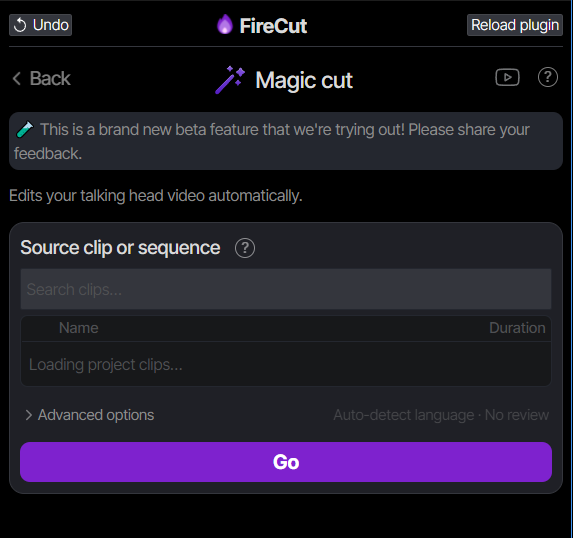
Bonus tip: Want to do all of this together? Try Magic!
Go from raw, unedited footage straight to a polished first draft in a single click. That's it. ONE click.
Step 5: Generate Captions and Chapters
Use the Add Captions tool to generate styled, animated captions directly on your timeline. You can either select a preset to add captions instantly or choose your own font, size, color or animation to create customised captions.
You can also select Detect Chapters to let the AI analyze topic shifts, insert timeline markers, or generate chapter title graphics automatically.
Here's a video tutorial showing FireCut in action:
Conclusion
Editing shouldn't feel like data entry. Manual timeline trimming is necessary for a clean end product, but doing it entirely by hand drains time and creative energy.
Where manual editing forces you to spend an hour making hundreds of individual razor cuts, automated tools handle that foundation in seconds. Offloading repetitive tasks—like silence removal, filler cleanup, auto-zooms, and transcription—compresses the most painful part of video production from hours into minutes. Instead of grinding through utility work, you start your edit with a tight, organized rough draft, giving you back the time to focus on what actually makes a great video.
So stop wasting time and start creating!
FireCut uses AI to help creators make better content, faster.
Available for Premiere Pro, DaVinci Resolve and Web.
Start free trial