

Let’s be honest: your first few hours in Adobe Premiere Pro are usually spent hunting for the "scissors." While splitting clips is the most fundamental skill in video editing, doing it manually for every single "um," "ah," and awkward silence is the fastest way to burn out before you even reach the color grading stage.
Whether you are looking for frame-by-frame precision or want to automate the entire process using AI, here are the three best ways to split video in Premiere Pro.
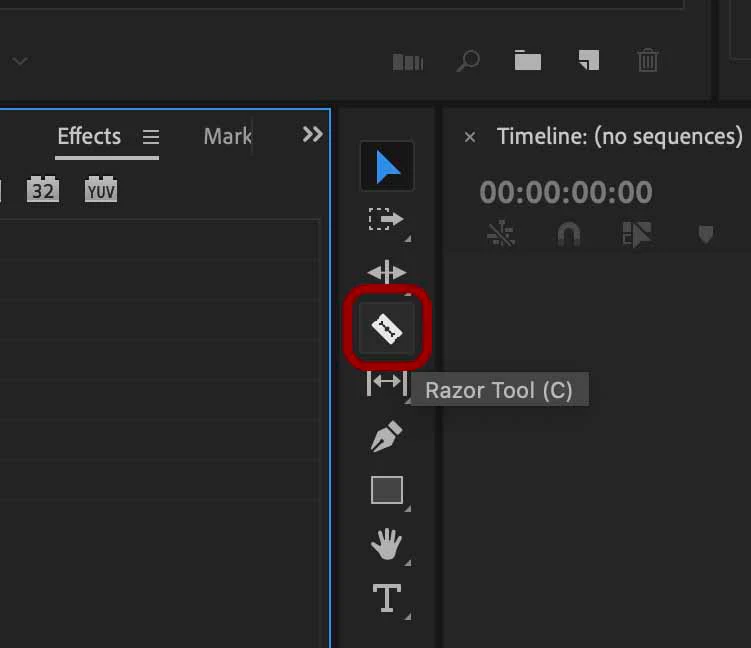
Method 1: The Classic Razor Tool (The Precision Approach)
The Razor Tool is the "old reliable" of the editing world. It’s visual, tactile, and perfect for when you need to make a specific cut at a very particular moment.
- How to do it: Press C on your keyboard to activate the Razor Tool (your cursor will turn into a tiny blade). Hover over the clip on your timeline and click to split.
- The Pro Tip: Hold Shift while clicking with the Razor Tool to cut through all tracks at once (audio and video) at that specific timestamp.
- Best for: Beginners or editors making highly intentional, one-off cuts in a complex montage.
Method 2: The "Add Edit" Shortcut (The Pro Speed Method)
If you watch a professional editor work, you’ll rarely see them click the Razor Tool. Moving your mouse back and forth to the toolbar wastes seconds that add up to hours over a long project. Instead, pros use the Add Edit command.
- How to do it: Move your playhead (the blue line) to the spot where you want to cut. Press Cmd + K (Mac) or Ctrl + K (Windows).
- Why it’s faster: You never have to take your eyes off the playhead or change your cursor tool. You can keep your right hand on the mouse for navigation and your left hand on the keyboard for "Add Edit."
- Best for: Fast-paced rough cuts where you are skimming through footage and need to chop as you go.
Method 3: AI-Powered Cutting (The FireCut Way)
Methods 1 and 2 are great for creative choices, but what about the "manual labor"? If you have an hour of raw footage and need to remove 300 silent gaps and 50 filler words, doing it manually is a waste of your talent.
This is where FireCut changes the game. FireCut is designed by Ali Abdaal & Suhail Idrees specifically for creators to save time on the small manual aspects of video editing. Instead of you hunting for silences, the AI does it for you.
- How to do it:
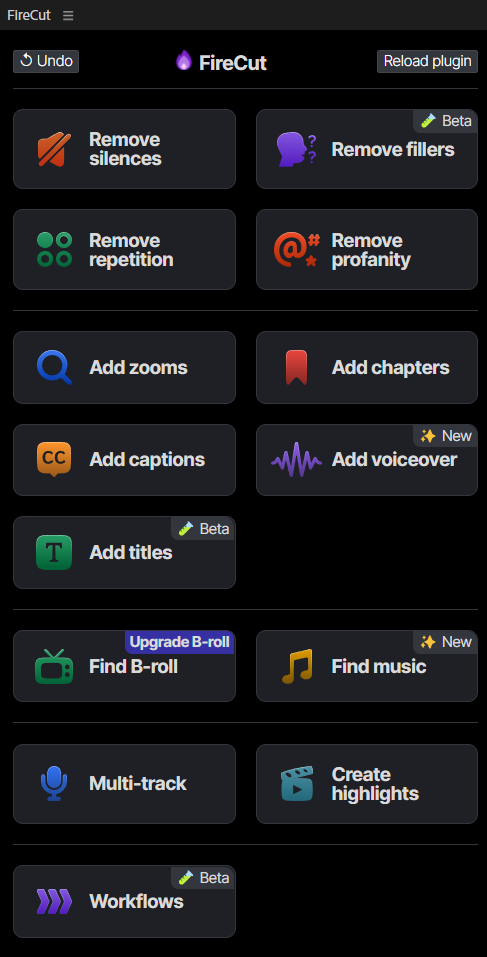
- Silence Removal: Open the Firecut plugin inside Premiere Pro and select "Remove Silences." You can set your "silence threshold" (how quiet is too quiet?) and "padding" (to make sure the cuts don't feel too abrupt).
- Filler-Word Remover: Select the "Remove Filler Words" tool. FireCut will scan your audio for "umms," "ahhs," and "likes." You can review the list of detected words and bulk-delete them with one click or go through them one by one to ensure the flow remains natural.
- Repetition Remover: Choose "Remove Repetitions." This is a lifesaver for long-form tutorials or podcasts where you might have done multiple retakes of the same sentence. The AI identifies the duplicate takes and keeps only the best (usually the most recent) one, instantly cleaning up your timeline.
- Profanity Remover: Select the "Profanity Remover" option. Instead of hunting through the waveform for swear words, FireCut automatically detects them and gives you the option to either mute the audio, add a classic "beep" sound effect, or cut the section out entirely—perfect for repurposing content for different platforms.
- The Result: FireCut analyzes the waveform and makes cuts in seconds, ripple-deleting the silence so you’re left with a tight, punchy rough cut instantly.
- Best for: YouTubers, Podcasters, and talking-head videos where speed and efficiency are the top priorities.
Every editor should know the Razor Tool for precision and the Ctrl/Cmd + K shortcut for speed. But in a world where content needs to be produced faster than ever, manual cutting shouldn't be your bottleneck.
By using the classic tools for creative decisions and FireCut for the tedious "cleanup" work, you can spend less time staring at a timeline and more time telling great stories.
Ready to stop cutting silence by hand? Start your free trial today and see how much time you can save on your next project.
FireCut uses AI to help creators make better content, faster.
Available for Premiere Pro, DaVinci Resolve and Web.
Start free trial