

If you have ever opened Adobe Premiere Pro only to stare at its complex interface with a rising sense of panic, you are not alone. It looks like the cockpit of a commercial airliner. But here is the secret: once you get past the initial intimidation, Premiere Pro is incredibly logical.
This guide will demystify the absolute basics of editing, equip you with the essential shortcuts professionals use to save hours, and show you how to leverage AI tools like FireCut to take care of the boring stuff so you can focus on being creative.
Let's dive in.
1. The Basics: Navigating the Interface
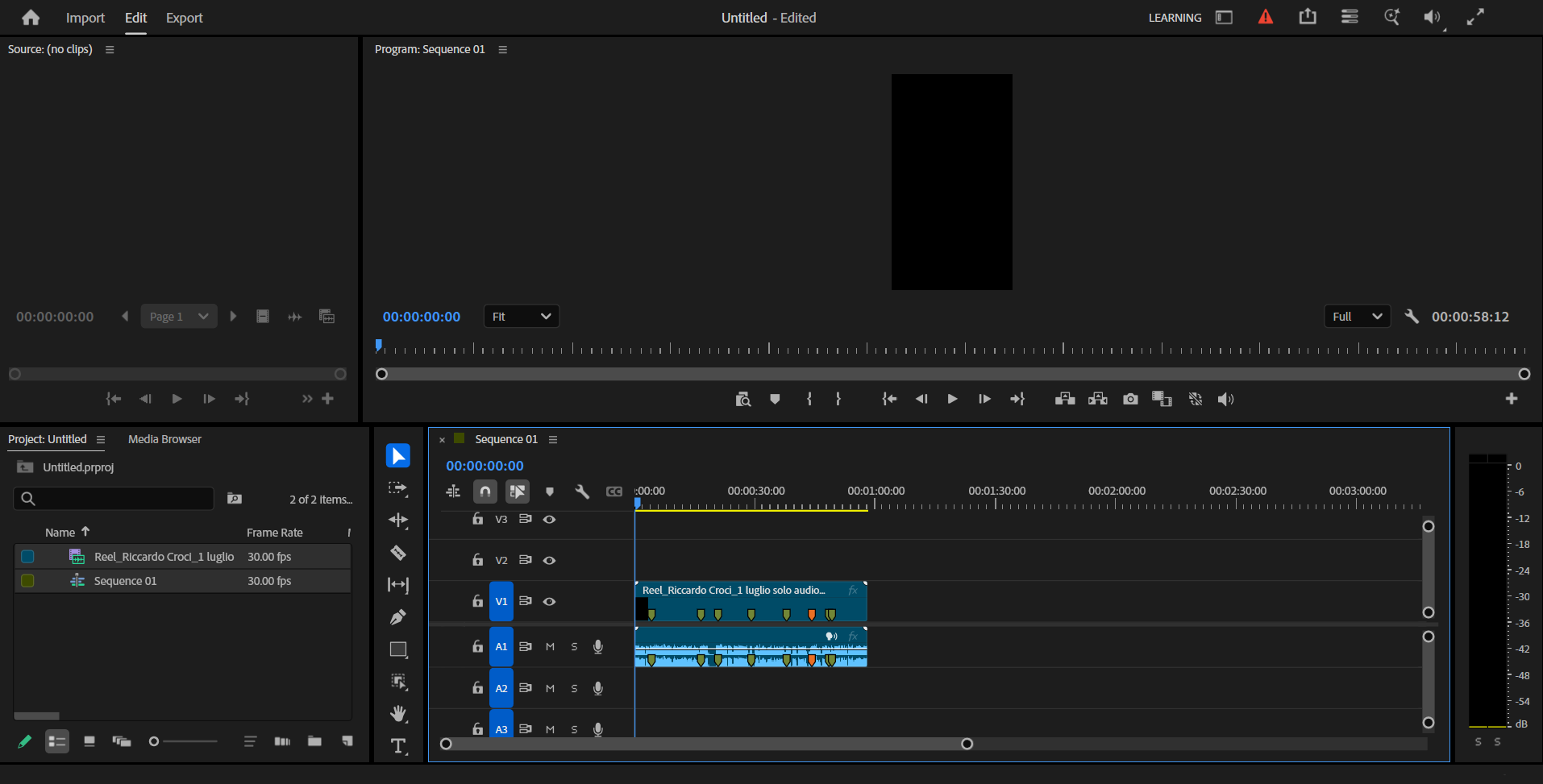
When you first start Premiere Pro and open a new project, you will be greeted by four primary panels. Think of these as your kitchen stations—each has a specific job.
- Source Monitor (Top-Left): This is where you preview your raw footage. You can mark "In" and "Out" points here to choose exactly which part of a clip you want to use before bringing it into your video.
- Program Monitor (Top-Right): Your video screen. This shows you exactly what your final, edited video looks like at any given second.
- Project Panel (Bottom-Left): Your storage bin. This is where all of your imported video files, audio tracks, images, and graphics live.
- Timeline (Bottom-Right): Your workbench. This is where you drag, drop, cut, and stack your media to build your actual video.
Your First Edit in 3 Steps
- Import Your Assets: Double-click inside the Project Panel to import your video files, audio tracks, and images.
- Create a Sequence: Drag your main video clip from the Project Panel over to the empty Timeline. Premiere will automatically create a "Sequence" that matches your video's settings.
- Trim & Arrange: In the timeline, you will see blue blocks. These are your clips. Track V1 is for video, and track A1 is for audio. Drag the edges of these blocks to make them shorter, or move them around to organize your story.
2. Speed Run: Essential Shortcuts
Editing frame-by-frame using only your mouse is a recipe for hand cramps and wasted hours. If you want to edit like a pro, you need to use your keyboard. Memorize these five commands to immediately cut your editing time in half:
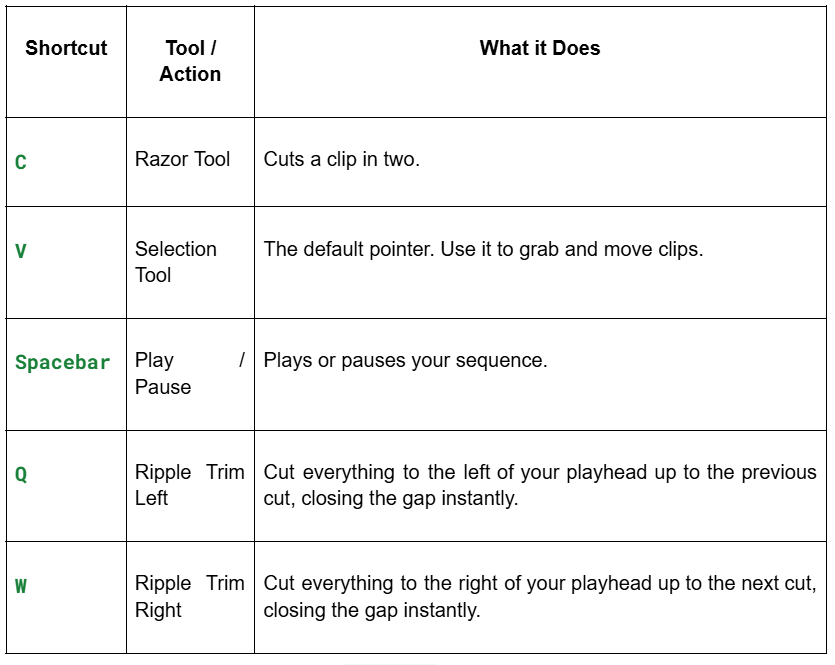
💡 The Pro Secret: Keep your left hand resting over the Q, W, E, A, S, D keys. Using Q and W (Ripple Trimming) will make you look like a wizard and save you thousands of repetitive mouse clicks.
3. The Ultimate Cheat Code: FireCut AI
While learning the basics of Premiere Pro is essential, the landscape of video editing has changed. Today, you do not have to spend hours doing "rough cuts"—manually slicing out pauses, dead air, or "umms." You shouldn't have to be pro editor just to add b-rolls, music or simple captions which are a must have for all videos nowadays
This is where FireCut comes in.
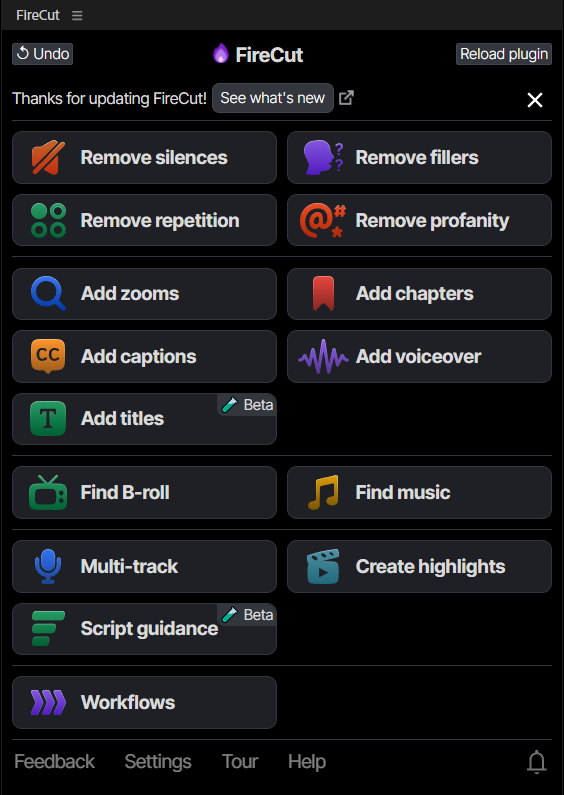
FireCut is an AI-powered plugin that integrates directly into Premiere Pro to automate the most tedious parts of video creation:
- Automatic Silence Removal: If you talk to a camera, you probably make mistakes or pause to think. FireCut can analyze your audio track and instantly cut out all the dead air with a single click, leaving you with a perfectly tight rough cut.
- Filler Word & Repetition Remover: It automatically finds and removes "umms," "ahhs," and duplicate takes where you repeated a line because you stumbled.
- Smart Auto-Zooms: To keep viewers engaged, editors manually zoom in on the video during key moments. FireCut uses AI to detect when you are emphasizing a point and adds those dramatic zoom cuts automatically.
- Animated Captions: It transcribes your audio and generates highly engaging, styled captions (complete with auto-emojis) in seconds.
- B-rolls & Background Music: It adds royalty-free B-rolls and background music related to your video in a few clicks.
Using FireCut does not make you a "lazy" editor; it makes you an efficient one. By letting AI handle the repetitive cutting and pasting, you free up your mental energy to focus on pacing, storytelling, color grading, and creative choices. So start your free trial today and make your life easier.
Conclusion
Every great video editor started exactly where you are today: looking at a blank timeline, wondering what all the buttons do.
The secret to mastering Premiere Pro is simply momentum. Import a quick video, practice using the shortcut keys, and don't be afraid to utilize modern tools like FireCut to bypass the boring parts of the workflow.
Now go create a new project and start cutting!
FireCut uses AI to help creators make better content, faster.
Available for Premiere Pro, DaVinci Resolve and Web.
Start free trial