

Every video editor knows the "Premiere Pro Hunch"—that posture you adopt after six hours of clicking through the timeline, hunting for the razor tool, and manually ripple-deleting awkward silences.
Adobe Premiere Pro is a powerhouse, but if you’re still using your mouse for every action, you’re essentially driving a Ferrari in first gear. To truly master the craft and hit those tight deadlines without burning out, you need to move your hands off the mouse and onto the keys.
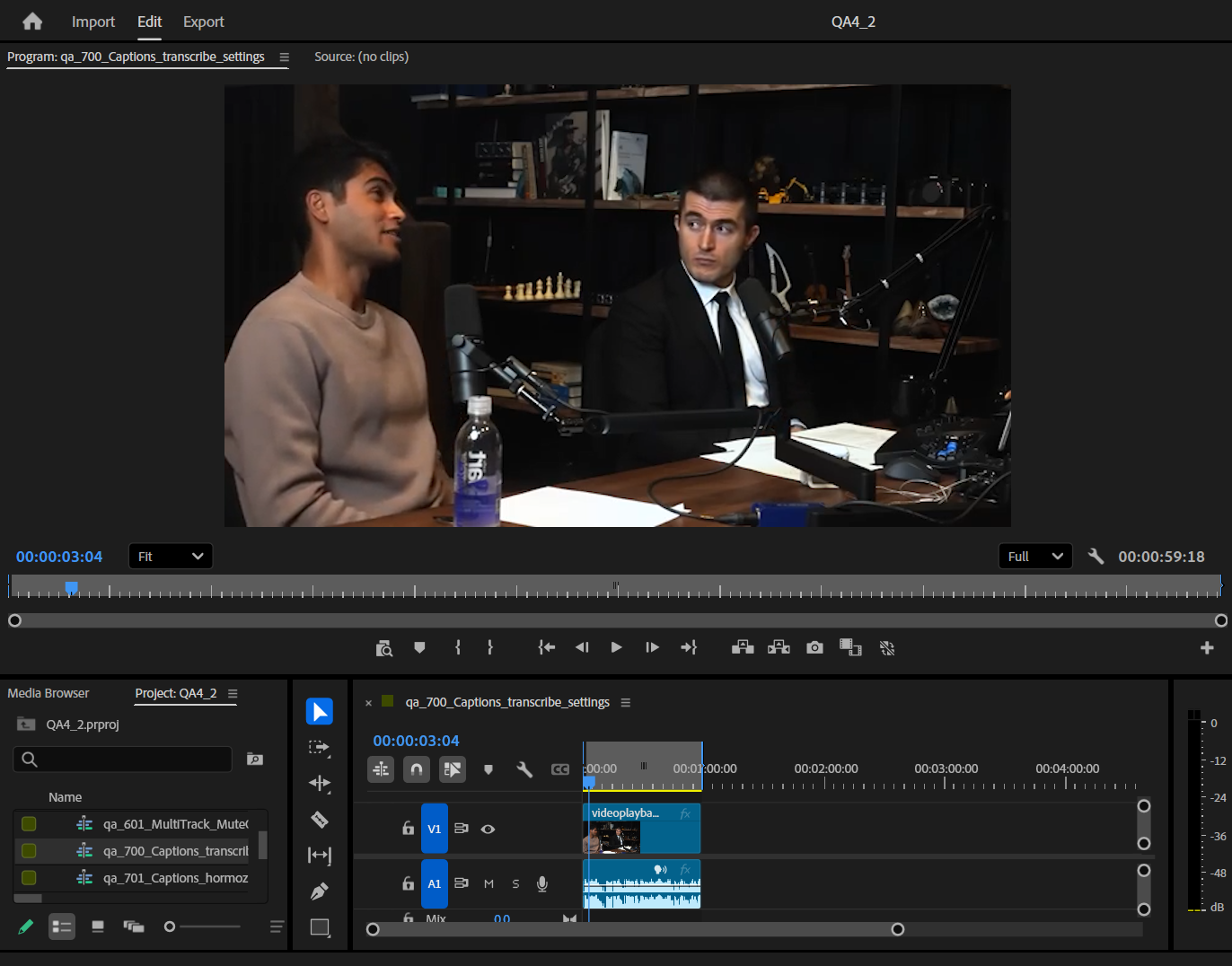
Mastering the Essentials: The Premiere Pro Cheat Sheet
Before we get into the advanced automation, you need to hard-wire these essential shortcuts into your muscle memory. These are the "bread and butter" commands that separate the hobbyists from the pros.
1. The "Big Three" Navigation Keys
- Spacebar: Play/Stop. (Simple, but you’ll use it 10,000 times a day).
- J, K, L: The navigation trifecta. J rewinds, K pauses, and L fast-forwards. Pro tip: Press L or J multiple times to increase the playback speed.
- I and O: Set In and Out points. This is essential for selecting specific portions of your footage before dragging them to the timeline.
2. Timeline & Editing Tools
- V (Selection Tool): Your default "pointer."
- C (Razor Tool): For making those quick cuts.
- A (Track Select Forward): Selects every clip to the right of your cursor—a lifesaver when you need to move a whole block of an edit.
- Cmd/Ctrl + K: Add Edit. This cuts the clip at the playhead without you having to switch tools.
- Shift + Delete: Ripple Delete. This removes a clip and automatically closes the gap.
3. Precision Trimming
- Q and W (Ripple Trim): These are the most powerful "hidden" shortcuts. Q trims everything from the start of the clip to your playhead; W trims everything from the playhead to the end of the clip.
- Up/Down Arrows: Jump between edit points (cuts) on the timeline.
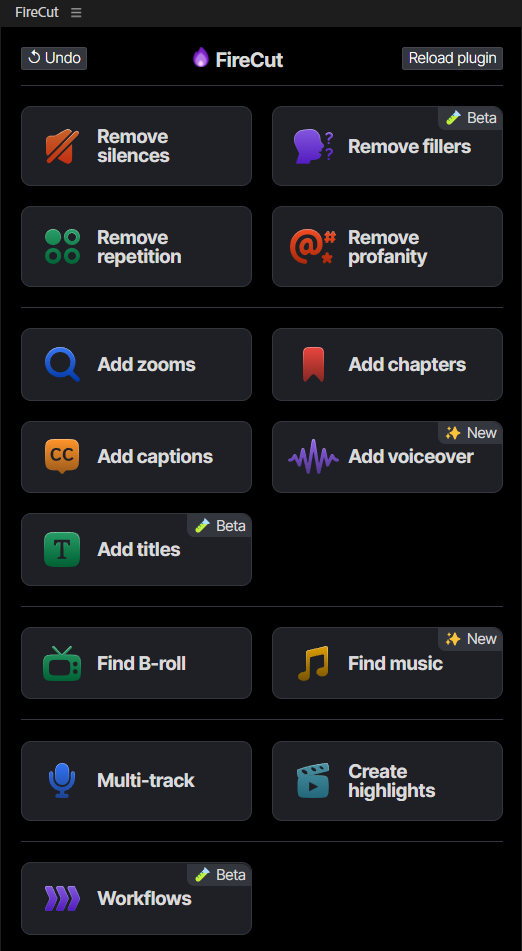
The "Ultimate" Shortcut: FireCut AI
While memorizing the shortcuts above will save you hours, there is a limit to how much manual clicking a human can do. Even the fastest editor in the world still has to manually listen for "umms," find dead air, and zoom in on talking heads.
This is where FireCut AI comes in. If a keyboard shortcut is a way to do one task faster, FireCut is the "super-shortcut" that does a thousand tasks at once.
Why FireCut is the Best Shortcut in Your Arsenal:
Instead of hitting Cmd + K and Shift + Delete five hundred times to clean up a raw interview, FireCut handles the heavy lifting through deep integration with Premiere Pro:
- Silence Removal: In one click, FireCut identifies every gap in your audio and removes it. It’s like hitting the "Ripple Delete" shortcut for your entire timeline simultaneously.
- Filler Word Detection: It automatically finds and removes "umms," "ahhs," and repetitive takes.
- Automatic Zooms: Instead of manually keyframing "punch-ins" for emphasis, FireCut detects key moments in the speech and adds professional zooms for you.
- Multi-Cam Switching: For podcasters, FireCut can automatically switch camera angles based on who is speaking, saving you from hours of manual "multi-cam" editing.
Editor’s Note: Using FireCut isn't "cheating"—it’s clearing the "boring" work out of the way so you can spend your energy on the creative storytelling that actually matters.
Conclusion
Speed in Premiere Pro is a two-step process. First, you must master the keyboard shortcuts that allow you to navigate the software instinctively. Second, you must leverage AI automation like FireCut to handle the repetitive, soul-sucking tasks that a machine can do in seconds.
By combining the manual precision of a cheat sheet with the automated power of FireCut, you’ll find that you aren't just editing faster—you're editing better.
Want to try the ultimate editing shortcut? Start a free trial today and turn hours of rough-cut editing into seconds.
FireCut uses AI to help creators make better content, faster.
Available for Premiere Pro, DaVinci Resolve and Web.
Start free trial