

In the world of video editing, "speed" is the name of the game. Whether you’re trying to punch in on a punchline for a YouTube video or add a subtle cinematic push-in for a documentary, you don't want to spend ten minutes messing with keyframes for a simple zoom.
While DaVinci Resolve is a powerhouse, its traditional keyframing system can feel a bit clunky for quick edits. Here are the three fastest ways to master Zoom without losing your mind.
Method 1: The "Dynamic Zoom" Hack
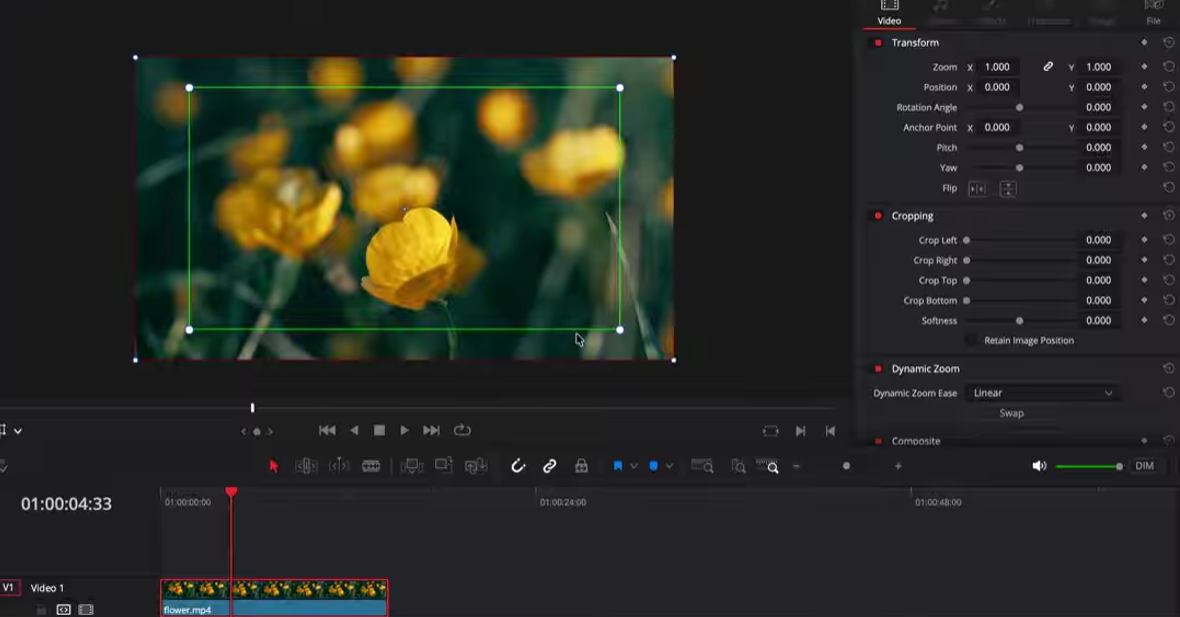
If you need a smooth, linear zoom-in or zoom-out and you need it now, the Dynamic Zoom tool is your best friend. It’s essentially a "set it and forget it" feature.
- How to do it: Select your clip, go to the Inspector panel, and toggle on Dynamic Zoom.
- The Shortcut: Click the Transform icon in the bottom left of the Viewer and select Dynamic Zoom. You’ll see two boxes: a green box (Start) and a red box (End).
- The Pro Tip: Swap the "Ease" settings in the Inspector to "Ease In/Out" for a much more professional, organic feel than a standard robotic zoom.
Method 2: The Adjustment Clip "Power Move"
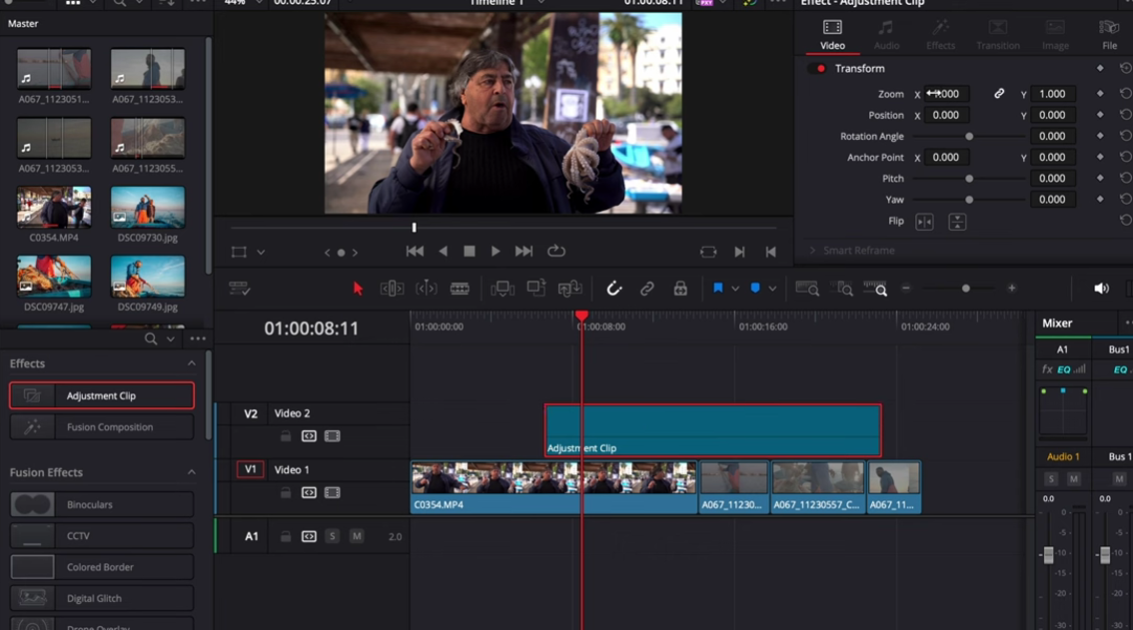
Do you have a sequence of five different clips that all need the same zoom-in? Don't copy-paste attributes. Use an Adjustment Clip. This method is the secret to maintaining a consistent look across your entire timeline.
- Go to your Effects Library > Toolbox > Effects and drag an Adjustment Clip above your footage.
- Trim the adjustment clip to the length of the section you want to zoom.
- With the adjustment clip selected, use the Inspector to change the Zoom and Position values.
Everything underneath that clip will now be zoomed in. If you want to change the zoom level later, you only have to edit one clip instead of fifty.
Method 3: FireCut AI
If "fast" isn't fast enough, it’s time to look at FireCut. This AI-powered plugin automates the tedious parts of the edit based on your video's content. FireCut identifies key moments in your sequence and suggests a zoom cut whenever something important is being said—giving your viewers a subconscious cue to pay attention.
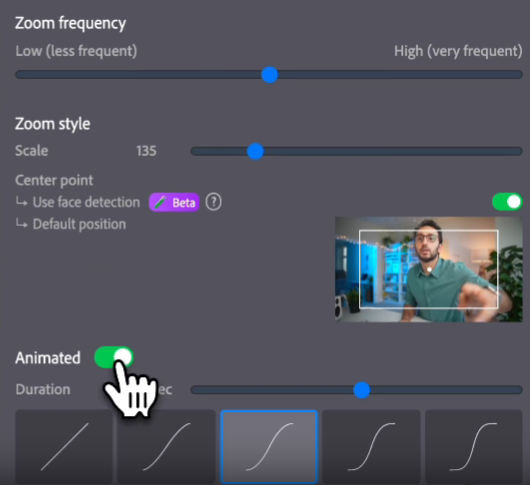
How to use it: To get started, simply navigate to Add Zooms, select your desired frequency (from low to high), and click "Go!" For those who want more granular control, FireCut allows you to customize the perfect shot by adjusting:
- Scale: Exactly how far you want to zoom in.
- Center Point: Where the frame focuses (including an option to automatically track and zoom into faces).
- Animation: Whether to do a sharp cut or a smooth animation
Once you hit "Go!" FireCut leverages advanced AI to analyze your sequence and apply these zooms automatically. Best of all, because these are added as standard clips in your timeline, you retain full creative control to tweak them to fit your specific branding and style.
There are other exciting features that come with FireCut as well. Like automated captions in more than 50 languages, auto B-rolls, background music, podcast editing, and much more. So if you want to save time and get more creative, start a free trial today!
In a world where attention spans are shrinking and production demands are soaring, adopting AI isn't just about working faster—it's about offloading the mechanical chores so you can spend your energy on the storytelling that actually matters.
FireCut uses AI to help creators make better content, faster.
Available for Premiere Pro, DaVinci Resolve and Web.
Start free trial