

We’ve all been there: you’ve spent hours cutting the perfect video, the pacing is tight, the color grade looks gorgeous, and then you remember… I still have to do the captions. In a world where up to 80% of mobile videos are watched on mute, captions aren’t just an accessibility feature anymore—they are essential for keeping your audience hooked. Fortunately, Premiere Pro has some powerful native tools to get the job done, and there are brilliant third-party tools to speed things up even more.
Here is your ultimate guide to editing and customizing captions in Premiere Pro, fast.
1. The Traditional Route: Manual Captions
If you want absolute control over your text from the very first frame, manual captioning is your go-to.
To get started, navigate to the Text panel (Window > Text) and select the Captions tab. From here, you have two choices:
- Transcribe Sequence: Let Premiere’s built-in AI listen to your audio and generate a rough transcript automatically.
- Create New Caption Track: If you already have a script or want to type as you go, you can create a blank track and manually punch in the text.
Once your text is on the timeline, Premiere places them on a dedicated Subtitle Track above your video layers. They behave just like video clips—you can trim, extend, and move them to perfectly match the spoken word.
2. How to Edit & Customize Fast
Plain, boring subtitles are a missed opportunity. You want your captions to match your brand's vibe. Once your captions are generated, here is how to style them efficiently:
The Essential Graphics Panel
Click on any caption block on your timeline, and open the Essential Graphics panel (or Text tab in newer Premiere versions). This is your command center for styling. You can change:
- Font & Size: Pick a bold, easily readable sans-serif font (like Montserrat, Futura, or Impact).
- Alignment & Zones: Use the 3x3 grid to instantly snap your captions to the bottom center, top, or sides.
- Styling: Add a subtle text shadow or a solid background box to ensure your text pops against any background.
The Secret Weapon: Track Styles
Don't waste time editing every single caption block one by one.
- Style one caption block exactly how you want it.
- In the Essential Graphics panel, look for the Track Style dropdown.
- Click Create Style, name it, and hit OK.
Pro Tip: This instantly applies your font, color, and sizing to every single caption on that track. If you change your mind later, just update one block, click the push icon, and the entire timeline updates instantly.
3. Level Up Your Speed with FireCut
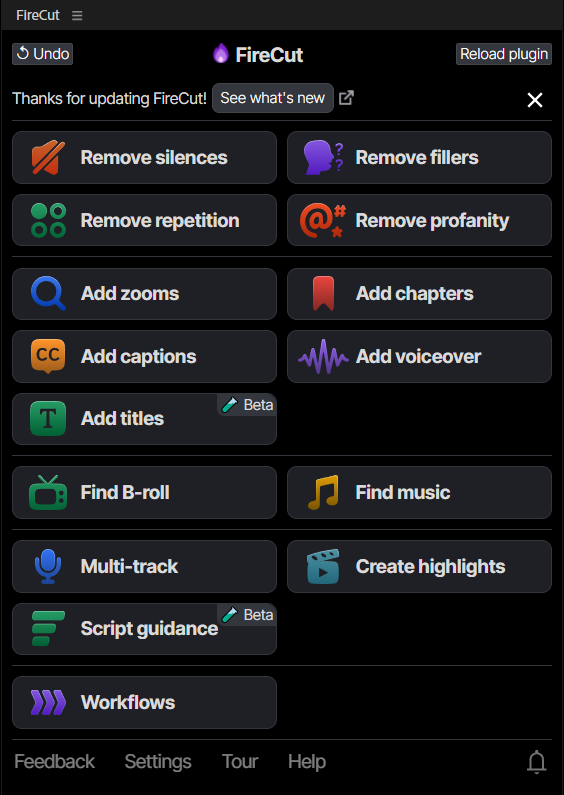
While Premiere’s native tools are fantastic for standard subtitles, they can feel a bit rigid if you are trying to create the hyper-engaging, fast-paced trendy captions with word-by-word highlights and emojis.
This is where AI plugins like FireCut come into play.
FireCut integrates directly into Premiere Pro and automates the tedious parts of the editing workflow. Instead of manually cutting up your text blocks to create punchy, single-word animations, FireCut can:
- Automatically generate stylized, animated captions in seconds.
- Add popular presets (like the popular Alex Hormozi style).
- Intelligently insert relevant emojis based on the context of what’s being said.
- More than 50 different languages are available.
- Remove profanity using AI to filter out any inappropriate words.
- Add animations (like pop, glow, grow, highlight etc.)
If you are a high-volume creator or editing for clients with tight deadlines, pairing Premiere's stability with FireCut’s automation will save you hours of manual keyframing. In addition to captions, it has other amazing features like silence removal, podcast editing, automated B-rolls and much more. You also get a one week free trial so start your free trial today and supercharge your workflow.
Conclusion
Captions don't have to be a bottleneck in your editing workflow. By mastering Premiere Pro’s native Track Styles, you can clean up manual transcription, and when you need that extra creative edge and speed, leveraging AI tools like FireCut will keep your content engaging without draining your time and energy.
So Fire up your Premiere Pro, build your go-to caption preset, and start saving hours on your next edit! Happy Editing.
FireCut uses AI to help creators make better content, faster.
Available for Premiere Pro, DaVinci Resolve and Web.
Start free trial