

Scrolling through TikTok, Instagram Reels, or YouTube Shorts, you’ve likely noticed a distinct trend: energetic, word-by-word animated captions with eye-catching colors, bold typography, and auto-inserted emojis. Popularized by creators like Alex Hormozi and MrBeast, these dynamic captions are proven to increase viewer retention, keep videos engaging on mute, and boost overall reach.
However, if you try to build these animated text effects natively in Adobe Premiere Pro, you quickly run into a wall. Keyframing individual words, applying graphic presets, and manually placing emojis can turn a 60-second video into a multi-hour editing marathon.
Fortunately, you don't need to leave Premiere Pro or waste hours on manual keyframing. With FireCut, you can generate and style viral, animated captions automatically in just a few clicks.

What is FireCut?
FireCut is an AI-powered plugin that integrates directly into Adobe Premiere Pro and DaVinci Resolve. Rather than forcing you to export footage to external web applications, FireCut operates as an in-app co-pilot, automating repetitive and time-consuming editing tasks.
Beyond generating animated captions in over 50 languages, FireCut handles:
- Silence & Filler Word Removal: Instantly cuts out dead air, "ums," and "ahs".
- Automated Zoom Cuts: Punch-ins at key moments to keep viewers focused.
- Auto B-Roll & Emojis: Relevant stock visuals and contextual emojis placed automatically.
- Podcast Multi-Cam Editing: Switches camera angles based on speaker activity.
When it comes to captions, FireCut bridges the gap between Premiere Pro’s native static captions and full-blown dynamic motion graphics. FireCut speeds up your workflow by allowing you to viral stylish captions in more than 50 languages with just a few clicks. You don’t have to be a pro editor to do this as FireCut’s user-friendly interface makes it easy to adapt for any beginner. Let’s see how you can add these captions to your videos.
How to Add Captions and Edit with FireCut
Here is how you can transform raw audio into high-converting, animated social media captions right inside Premiere Pro:
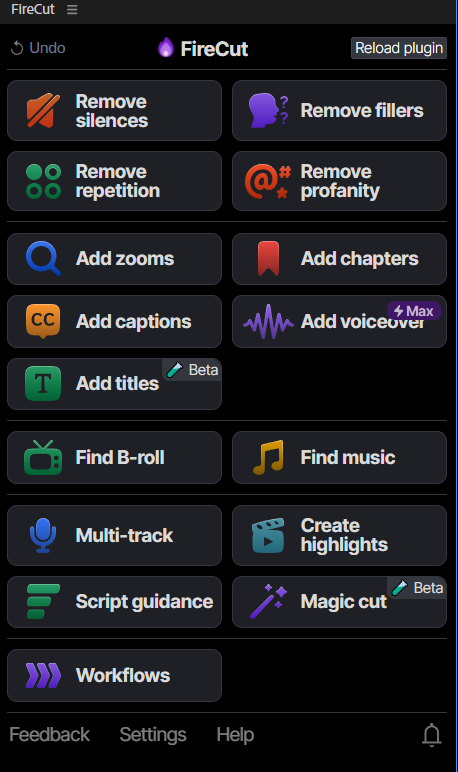
Open the FireCut Extension:
- Launch FireCut inside your existing workspace.
- Import your footage and set up your active timeline in Adobe Premiere Pro.
- Go to the top menu bar and select Window > Extensions > FireCut.
- The FireCut panel will open directly inside your workspace, giving you access to all AI tools without leaving the app.
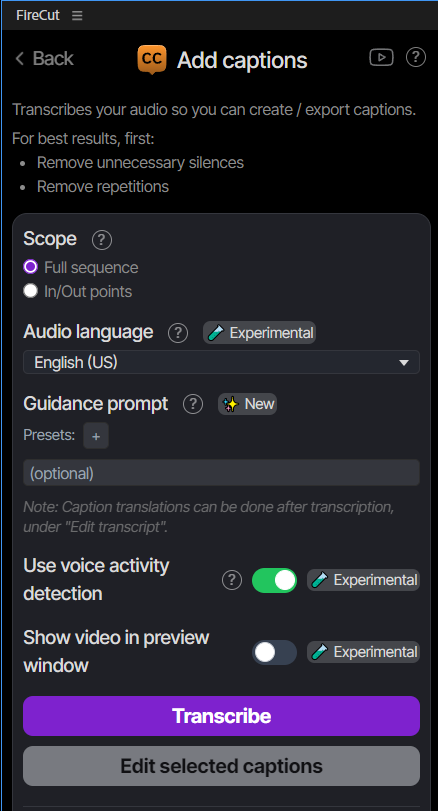
Select 'Add Captions' & Transcribe:
- In the FireCut panel, click on Add Captions.
- Choose the spoken language of your video (FireCut supports over 50 languages).
- Click Generate to let the AI transcribe your audio track into accurate, word-level timestamps.
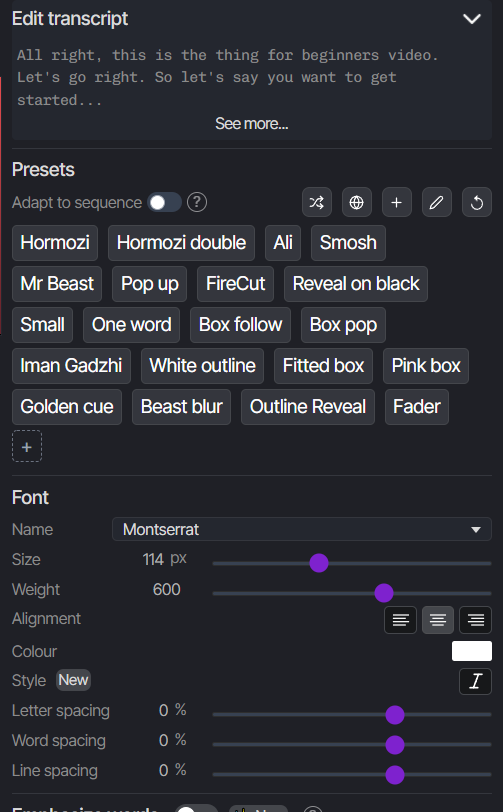
Customize Your Caption Preset & Style:
- Choose a Template: Select from built-in viral presets (e.g., Hormozi-style, Minimalist, Bold Pop) or build your custom look.
- Typography & Styling: Select your font, text size, outline stroke, drop shadow, and background box options.
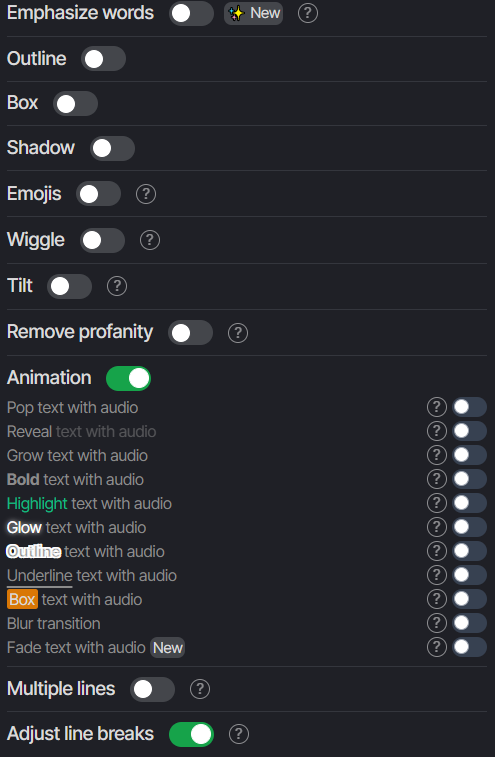
- Animations: Choose how words highlight as they are spoken (e.g., pop-in, active word highlight color, bounce, or slide-in).
- Auto-Emojis & Emphasis: Toggle automatic emoji placement and emphasis word highlighting to automatically draw attention to key phrases.
Review & Render to Timeline:
- Skim through the transcript preview to make any quick word corrections or add custom overrides.

- Click Apply. FireCut will automatically generate live motion graphic layers on your Premiere Pro timeline with every animation, font, and emoji baked in.
Video Tutorial
Want to see FireCut's animated caption workflow in action? Watch this step-by-step tutorial to see how fast you can turn raw footage into a viral-ready short:
🎬 Watch: [FireCut Premiere Pro Captions Tutorial]
Conclusion
Animated captions are no longer optional if you want your short-form content to stand out in crowded feeds. While Premiere Pro's native tools are great for basic closed captioning, FireCut gives you creator-level motion typography, auto-emojis, and dynamic word highlights in minutes instead of hours.
By removing the friction from editing, FireCut allows you to focus on creating great content rather than spending half your day keyframing subtitle clips. So let FireCut handle heavy lifting while you focus on creating.
FireCut uses AI to help creators make better content, faster.
Available for Premiere Pro, DaVinci Resolve and Web.
Start free trial