

Animated captions are no longer optional if you want your short-form content to stand out in crowded feeds. While building animated text natively in Adobe Premiere Pro can turn a 60-second video into a multi-hour editing marathon, you do not need to waste hours on manual keyframing. There are many tools available to add automatic captions to your videos. However, if you wish to edit within Premiere Pro, try FireCut AI.
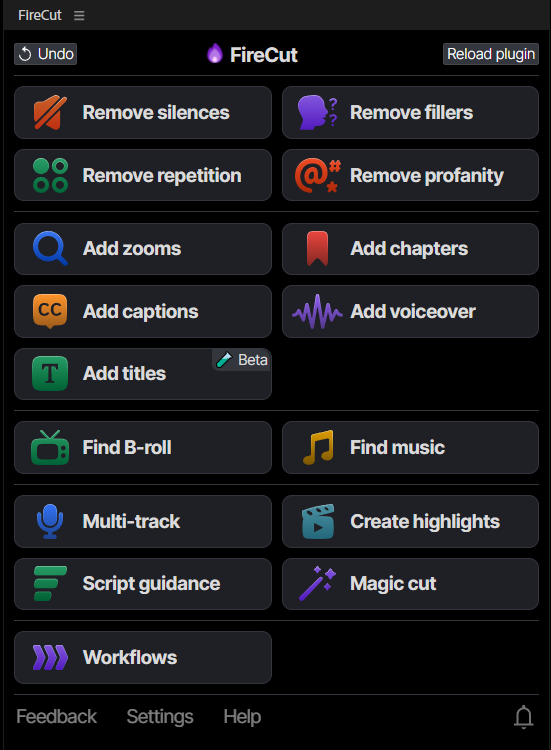
FireCut is an AI-powered plugin that integrates directly into Premiere Pro as an in-app co-pilot. It is designed to speed up your workflow by taking over the manual labor, such as adding automated captions, cutting silences, adding zooms, adding b-rolls, and much more. While FireCut takes over the repetitive editing tasks, it gives you the creative freedom to choose the aesthetics for your video. Let’s see how FireCut can help you add styled captions to your video.
Adding Styled Captions with FireCut
Instead of exporting footage to external web applications, you can transform raw audio into high-converting captions directly inside your workspace. Here is a step-by-step breakdown:
- Open the FireCut extension panel without leaving Premiere Pro.
- Click 'Add Captions' and select your video's spoken language, with over 50 languages supported.
- Click 'Generate' to let the AI transcribe the audio into accurate, word-level timestamps.
- Skim the transcript preview to make quick word corrections or add custom overrides.
- Click 'Apply' to automatically generate live motion graphic layers on your timeline.
Customizing Presets & Styles
To give your videos a highly polished or viral aesthetic, you can deeply customize the appearance of your text:
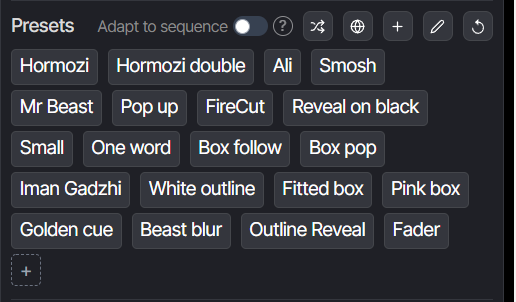
- Viral Presets: Select from built-in templates matching popular creator styles like Alex Hormozi, Minimalist, or Bold Pop.
- Typography Styles: Personalize the look by choosing your preferred font, text size, outline stroke, drop shadow, and background box options.
- Automated Enhancements: Toggle automatic, relevant emoji placement and emphasis word highlighting to draw viewer attention to key phrases.
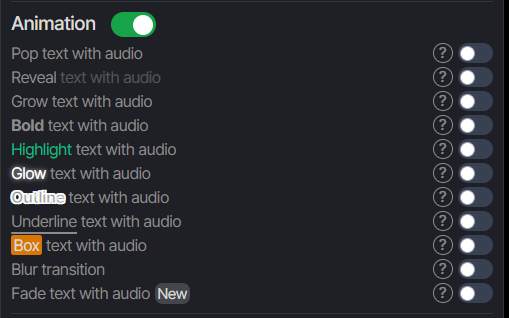
- Dynamic Animations: Choose how words are highlighted as they are spoken, utilizing pop-in animations, bounce, slide-in, or active word highlight colors.
Titles:
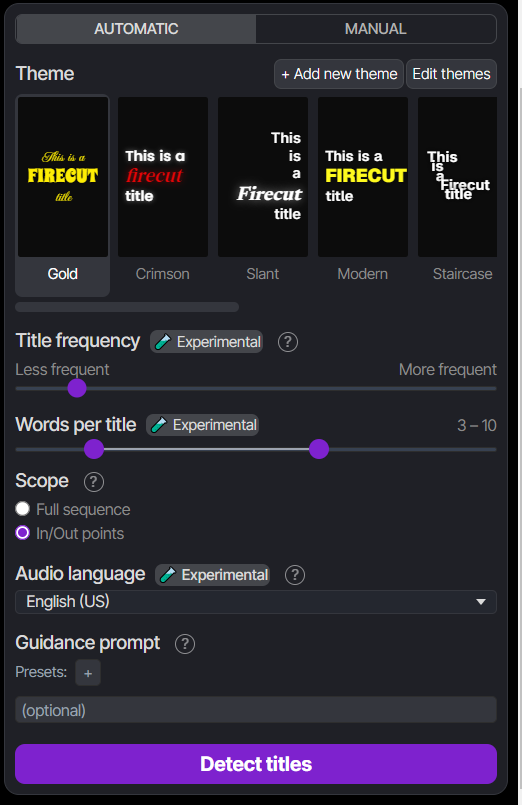
If you think captions are too boring and old school for short-form content, go with Titles. The "Add Titles" tool automatically detects important or key phrases spoken in your video and generates animated text titles for those moments. You get popular presets to choose from, or you can add a customized new theme.
Conclusion
By removing the friction of manual editing, FireCut serves as the perfect AI assistant that automates your workflow without taking away your creative spark. So start your free trial today and let AI handle the grunt work while you focus on the creativity only.
FireCut uses AI to help creators make better content, faster.
Available for Premiere Pro, DaVinci Resolve and Web.
Start free trial